What the tool does, frame by frame
Every frame of your MP4 is decoded in a background worker and scanned with a face detector (MediaPipe BlazeFace), and each candidate is confirmed by a second model that fits 478 facial landmarks. Only candidates that pass both checks become a face track; the 36 outline points of the confirmed face define the shape that gets masked, so a tilted or partly cropped face is covered along its real outline rather than a loose box.
Faces are linked from frame to frame by overlap and movement. A detection that drops out for a moment is bridged for at most 300 ms (about nine frames) and only when the pixels still match the last confirmed face; longer gaps are left open and flagged for your review instead of being guessed.
How it works
The work happens in two passes. Analysis finds where faces are and when scenes cut, and builds a plan you can edit. Export decodes the video again, draws the masks from that plan on every frame, re-encodes the picture as H.264 and copies the original AAC sound packets into a new MP4 — nothing leaves your computer, and no server queue is involved.
Because the picture is re-encoded, the result is not a lossless copy of the original video; the sound, however, is byte-identical. Expect the file to be a similar size to a phone recording of the same length.
Blur, mosaic or solid cover — which hides a face best
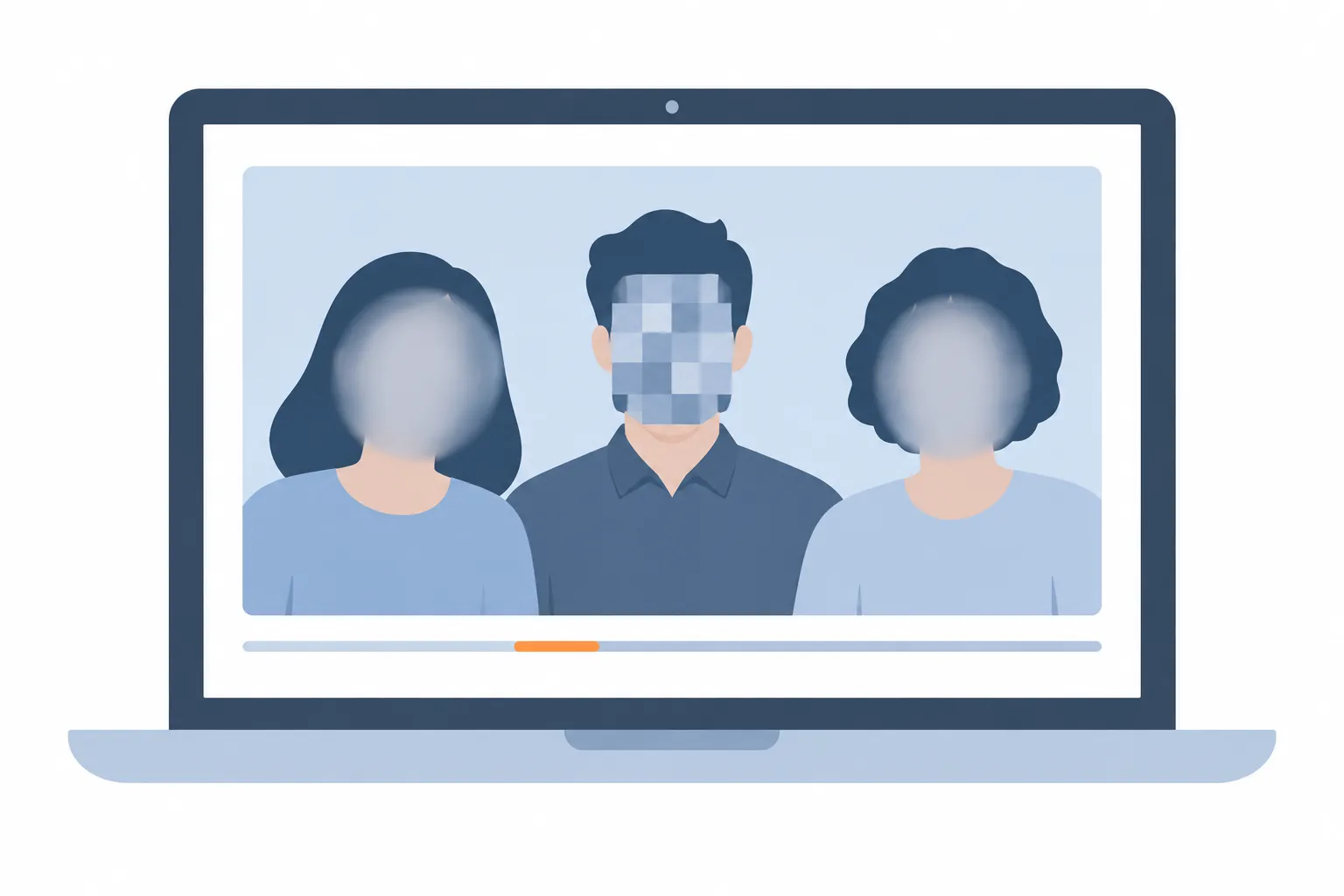
Blur (default 24 px) softens the face so expressions disappear while the scene still looks natural; use a strength above 16 px for faces that fill much of the frame. Mosaic replaces the area with large blocks and reads clearly as "censored"; blocks of 16 px or more are safe, very small blocks can sometimes be undone. Solid cover paints an opaque colour over the face and is the only option that is mathematically irreversible — choose it when anonymity matters more than looks.
Padding (default 8% of the face size) grows every mask so hair, ears and chin edges are covered too; raise it when people move quickly. Overlapping masks are merged into one shape before the effect is applied, so two faces close together never leave a gap or a weaker patch between them.
Sound is kept, not re-encoded
If the MP4 has one AAC sound track, its packets are copied unchanged into the result — the same bytes, so voices, music and timing are exactly as recorded. You can choose Mute instead to drop the track entirely. Other audio codecs (MP3, PCM, Dolby) can't be copied; the tool asks you to mute rather than silently dropping the sound.
Masking faces does not anonymise voices, name badges, licence plates, on-screen text or reflections. Mute the sound if a voice would identify someone, and cover other details with manual regions.
Review sections and manual regions
After analysis the timeline marks sections worth a look: low detection confidence, a lost track, a sudden jump, a scene cut or two faces crossing. These are hints, not a guarantee — sections without a marker can still contain a missed face, so play the whole result at least once.
To cover something that was missed, press Edit regions and drag on the video to draw a rectangle or an ellipse. A new region lasts two seconds from the current time; change its start and end in the panel. By default it stays where you drew it; to follow a moving person, add keyframes at other times and the region glides between them. Profiles, faces turned away, very small or heavily blurred faces and faces in mirrors or screens are the usual misses.
Privacy and what is downloaded
The video, its frames, the detected face positions and your manual regions never leave your browser; there is no upload endpoint. The only download is the face-detection model and its WebAssembly runtime (about 14 MB, once per browser) from this site, and the only thing reported for the beta is that an export finished — not the file name, length, number of faces or anything about them.
The result MP4 contains no GPS location, camera details or other metadata from the original. Limits in this version: MP4 with H.264 or HEVC video, up to 5 minutes, 500 MB, 4K and 30 fps, one AAC sound track or none, in Chrome or Edge on a computer.
Limits of automatic face detection
Detection runs on every frame but no model finds every face: side profiles, faces turned away, strong backlight, motion blur, very small faces and cartoon or mirrored faces are missed more often. The tool never fills a detection failure with "no faces"; if the model fails, the job stops with an error instead of producing a video that looks safe.
The result is therefore an aid, not a legal anonymisation. Review it, add regions for anything missed, and prefer Solid cover when a face must be unrecoverable.